FAQs
GPS
Check if you are connected to the RTK receiver.
Many tablets/laptops have an internal GPS receiver – so it won't work.
First, all RTK receivers UNPLUG IT IN– F9P / Autosteer PCB / ByNav etc.
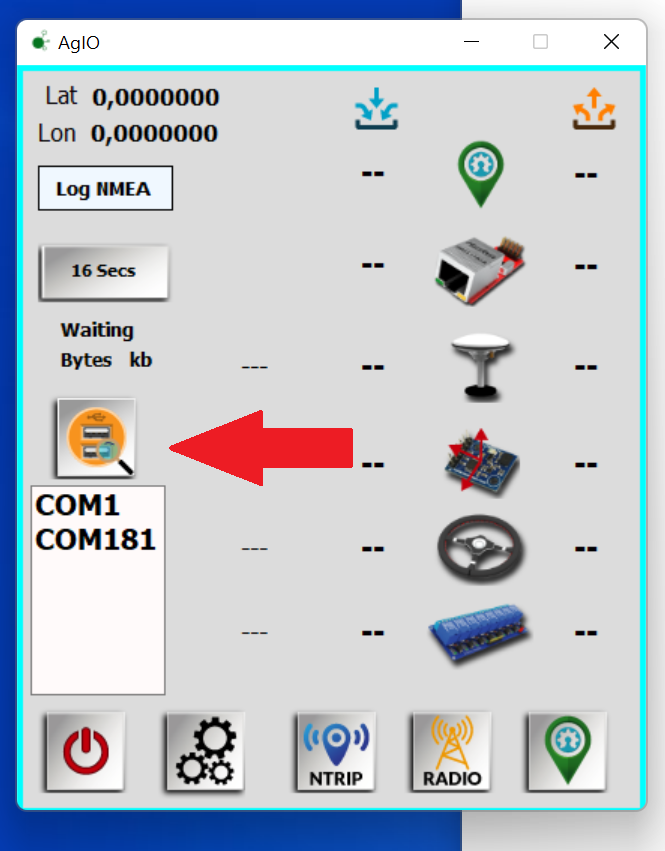
Then check AGIO Com Ports. Red arrow
Now all COM ports of the tablet are displayed.
Now the RTK receiver / autosteer PCB infect.
Scan COM ports again.
Connect to receiver

If you only have one F9P /Bynav, one more COM port will now be displayed.
My Autosteer PCB has two additional COM ports. – Simply try both in the following steps.
Here, COM59 is the new COM port of the RTK receiver.
Then select the connections.
For GPS, select the corresponding COM port 115200 and press the green button to connect.
Do not use a different port or GPS!!!
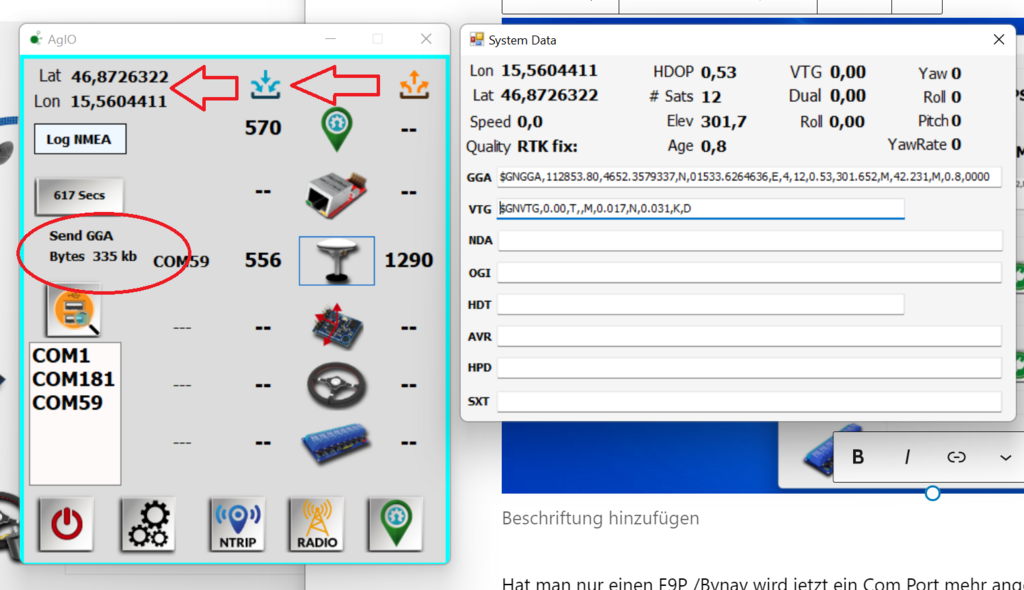
Once the Ntrip client is correctly configured, the Counting bytes (red circle) – approximately 1 kb per second
Coordinates should be displayed for Lat / Lon.
If you click on the blue arrows A window with more information will open.
GPS Single and an Age value of 0 means no correction data.
RTK Fix and an Age value (age of the correction data) of less than 2 seconds is perfect.
RTK Float or DGPS This means poor antenna reception – office :-), windowsill, garage, etc…
If the Age value keeps increasing and counting up, there is a problem with the internet.
NTRIP Sample Data for Apos Austria (similar to Sapos Germany)
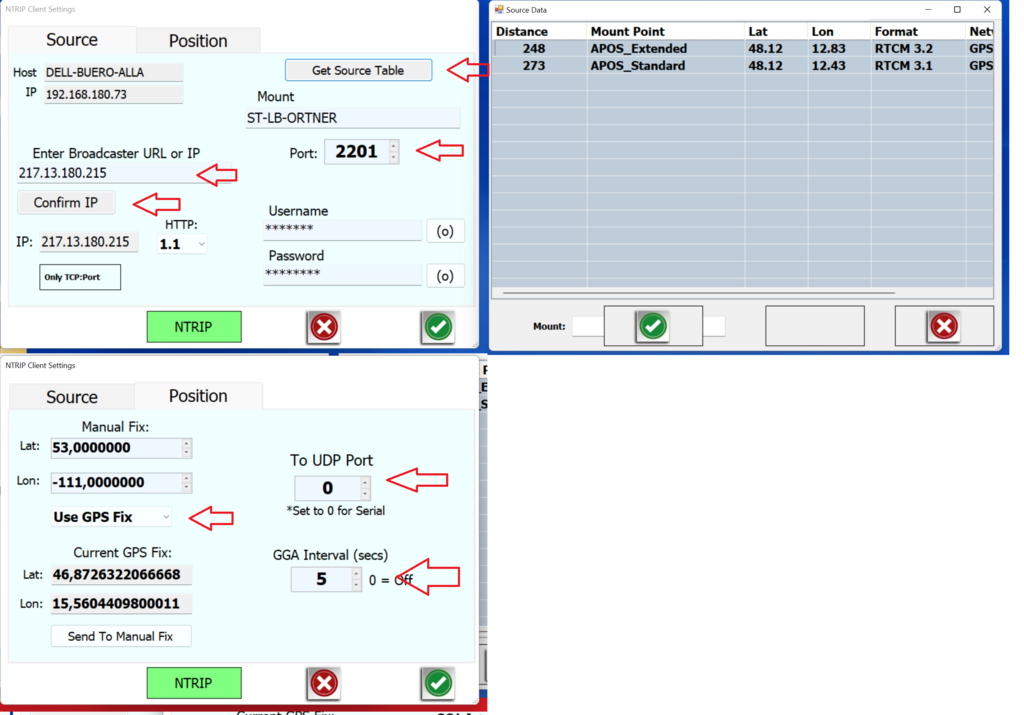
First enter the URL or IP address. 217.13.180.215 for Apos
Press Confirm IP – the same should now be displayed below.
HTTP 1.1
TCP only:Port NOT activate.
Port 2201 – select for Apos
Press Get Source Table and select Apos_Extended
Enter your username and password.
In the Position tab:
Select USE GPS fix.
Leave UDP Port 0 for the USB port
GGA interval 5-10 seconds.
Activate NTRIP. (Green button at the bottom)
If the receiver receives correction data and is located outdoors, AgOpen should display RTK Fix or RTK Float. For the F9, this should take a maximum of 2 minutes after plugging it in.
What can I check?
- Check base station
- In Ucenter: Open Receiver > NtripClient
- Enter address / port / username / password
- Update SourceTable and then click MountPoint Details
- If details are displayed there, the basics are at least reasonably sound.
- Select the appropriate mount point and confirm with OK.
- The client should now be receiving data, which is indicated at the bottom by "Ntrip Client" with "Connected" and a green message.
- Next, in Ucenter: UBX > right-click and enable Child Messages.
- Under UBX>RXM>RTCM you will then see 2 windows.
- The data stream should be visible at the bottom.
- If the CRC check shows a fail, then something may not be wired correctly (home-built RUT955).
- The overview of received messages is shown at the top.
- If the data is missing, there is an error with the base.
- For self-built base stations, it is very important that all data is configured correctly.
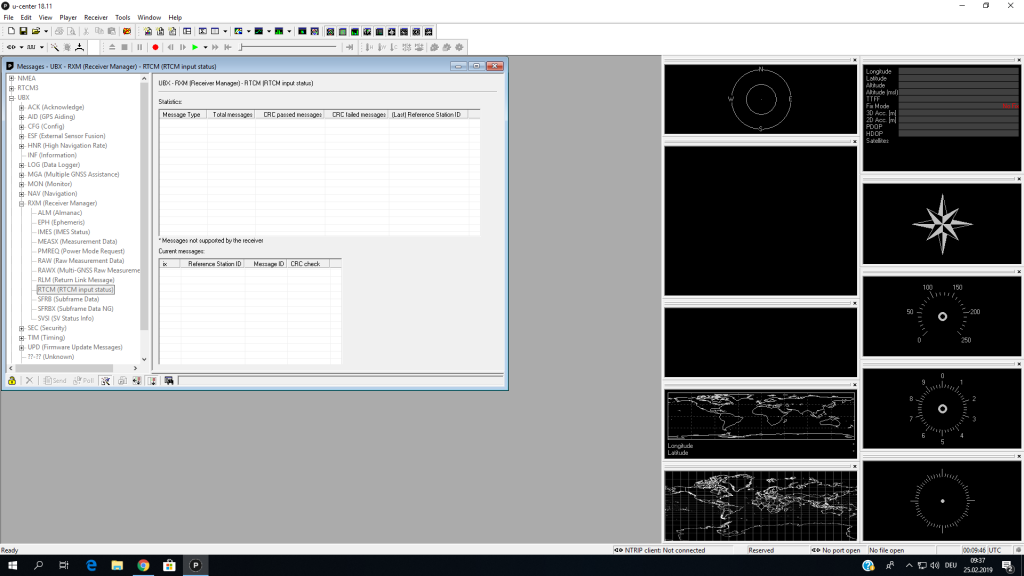
These can be found under View>MessageView
UBX > right-click > enable Child Messages
be reactivated.
However, this data stream is relatively large and burdens Cerea and Agopen with unnecessary data clutter.
Just turn it off again afterwards!
Unfortunately, there's a bug in AgOpen. We're trying to find the cause, but it's proving very difficult…