Mosaic X as base station
January 31, 2023With a trio of seven mosaic-X5 Build your own highly accurate RTK base station for your farm. This guide shows you how to determine the base station's position with centimeter precision and transmit the correction data to your tractors.
1. Connect and prepare

Connect the antenna
Connect Power+GPS to the PC using a USB-C cable.
Wait 30 seconds
Then a folder will open – install the drivers for the Septentrio from there.

Enter http://192.168.3.1/ in your browser.
Login and activate L5
- On first access, the web interface prompts for a username and password. ArduSimple boards pre-set both.
ardusimple. - L5 is deactivated by default. Activate for a triple-band base station: Admin → Expert Control → Control Panel → Navigation → Advanced User Settings → Tracking → Signal Tracking – expand all signal groups, check all bands, OK and Save Configuration.

Set Ethernet Interface Mode to ON. (OK – click "save to boot" in the bottom right corner)
Note the IP address here: 192.168.180.192
Remove USB-C cable
Connect the Ethernet cable.
Wait 30 seconds
Access the IP address from before: 192.168.180.192 (example)

2. Determine the position of the base
So that the basis is not only relative, but also absolutely If the error is within a few centimeters, we briefly retrieve correction data from an RTK service (e.g., APOS or SAPOS – see Free RTK correction data) and adopt the measured position as a fixed reference. This is more accurate than the auto mode (average), which is only absolutely accurate to about 1–2 m.
Corrections – Ntrip – select new Ntrip client

Confirm again


Position Mode on Static
Reference position: Geodetic1
Access Advanced Settings
Tip: Use a calibrated antenna, select below. GNSS → Position additionally the appropriate Antenna type Off – then the antenna calibration is automatically taken into account (important for example for onocoy).

OK
Confirm Save to boot
The status changes from „RTK Fixed“ to „Fixed“ – the base station has now been determined.

3. Pass on correction data
3a) Send to an NTRIP caster (e.g. RTK2go or rtk.co.at – registration required)

RTK2go is a free community caster. Register a mount point there (registration must be confirmed via email; activation takes a few hours). Settings in mosaic: Caster rtk2go.com, Port 2101, Your mount point and password, NTRIP version v1. Note: Your base is publicly visible on RTK2go.
Select new Ntrip server

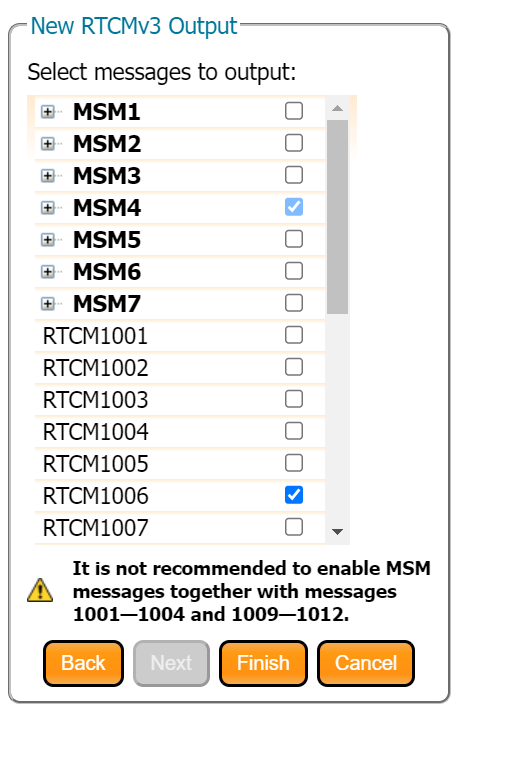
Press Finish.
RTCM News: The standard selection MSM4, 1006, 1033 and 1230 It fits most receivers, including the F9P. The 1230 (GLONASS bias) is important for u-blox rovers.
OK – Confirm Save to configuration.
3b) Use the internal NTRIP caster (for advanced users)

Enable NTRIP Caster
Create new mount point
Create new users.
OK – SaveConfig
Corrections – Corrections Output – Select New RTCM3 Output (as above)
Select new Ntrip server
New Ntrip Server Connection

Select Mount Point from earlier
Next
Select MSM Messages
confirm
saveconfig

If external access (e.g., from the tractor via mobile network) to the internal caster is required, the following must be done on the Router the port 2101 be forwarded to the IP address of the base station.
Security: Be sure to create separate users with secure passwords for the caster, change the web interface password, and configure the router settings. only Port 2101 free – never the web interface (port 80).
3c) onocoy – Share your base and get rewarded
In the onocoy network Share your correction data with other users and receive a reward. onocoy also calibrates your base's position within the network. It's available pre-configured from us as onocoy RTK base station (Mosaic X5).
Update firmware
- Latest firmware for the mosaic-X5 at Septentrio download.
- In the web interface Admin → Upgrade open, select the file and Start upgrade press.
- After a few minutes, the message „Upgrade successful“ appears.
- The next time you access the system, you will need to create a new user. The factory login will then be used.
RxAdmin/S3pt3ntr10.